
By Paolo Dy
Hour fifteen, and the footage is stuck on a card. Filmmaker Paolo Dy shares hard lessons on offloading, backing up and managing digital media on set.
IT’S HOUR FIFTEEN on the shoot of my short film ‘QWERTY’, and everyone’s patience is wearing thin. We can’t proceed with the next shot in the sequence, because the footage from the last set of takes is still being downloaded to the hard drive being used for storage on-set. This is the umpteenth time it’s happened, and if not for the heroic efforts of our editor Jason Tan (who very generously showed up on the set to help us out, above and beyond the call of duty), we’d be pretty much tearing our hair out by now.
It’s been more than a little challenging to deal with this camera’s peculiarities, and more than once we wonder why we ever decided to risk using a system we weren’t totally familiar with on this shoot. We decide to file this under “keeping abreast of cutting-edge technology” – thanking God that we were cutting our P2 teeth on a personal film project, with no ad agency or corporate client breathing down our necks.
At least the footage looks gorgeous.
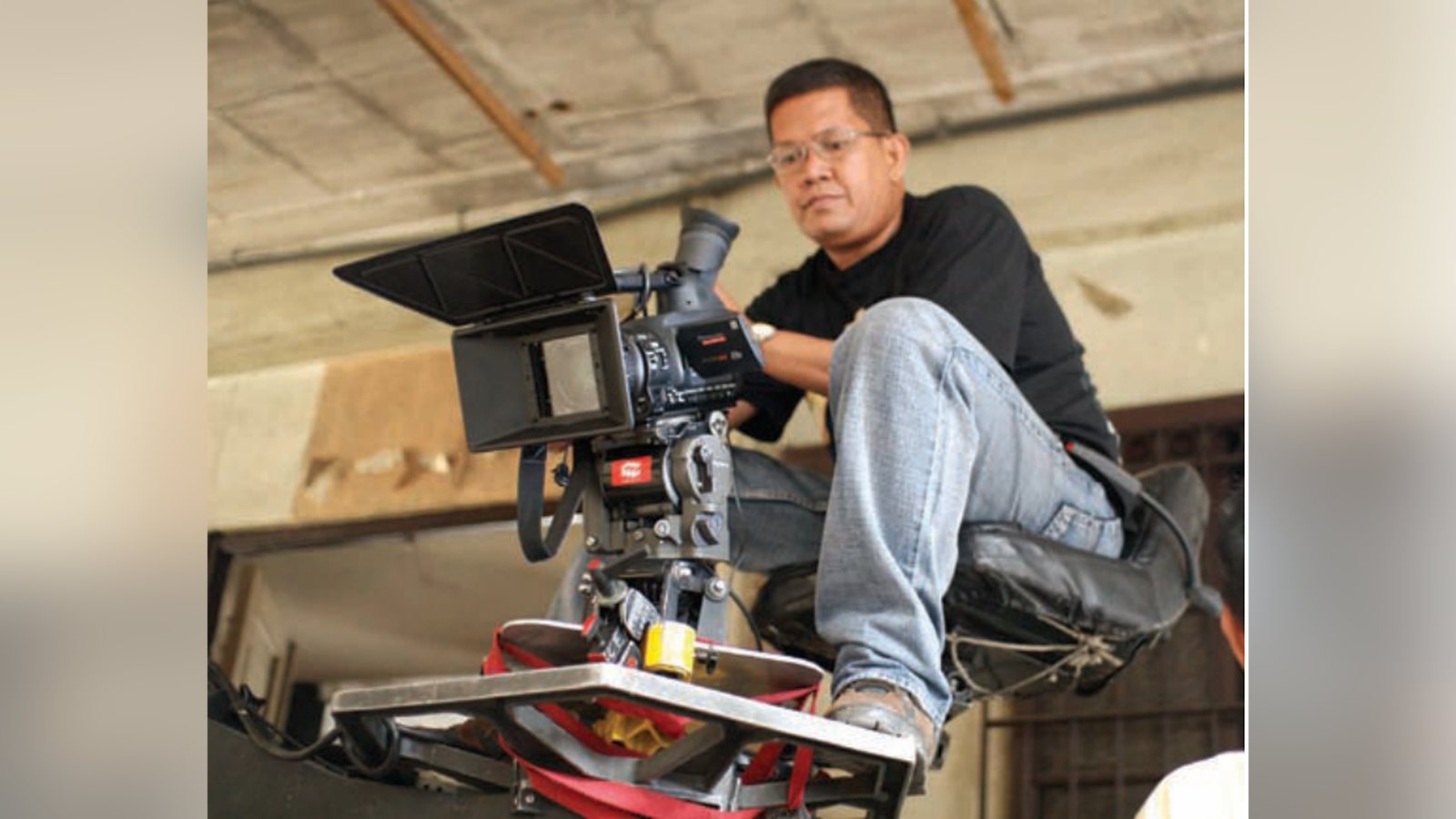
There was considerable excitement among small-scale production houses and independent filmmakers with the introduction of Panasonic’s AG-HVX200 camera, because it put true HD acquisition within arm’s reach (okay, long-arm’s reach) of “normal” people. Giving you 720p/1080i HD resolution at 4:2:2, with the ability to shoot at up to 60fps for slow-motion footage, the HVX200 provides great image quality without too much sticker shock: just over $5,000 from a reputable online supplier for the base camera unit. Considering that most other HD options (excluding the workable but highly-compressed HDV format) are in the $50,000-and-up range, the Panasonic is a steal.
The catch is that as of this writing, the HVX200’s media is still very expensive. Panasonic’s P2 data card format is essentially a PCMCIA card housing several high-speed SD memory modules arranged in a RAID array. This gives the HVX enough bandwidth to handle the massive amounts of HD data coming from the CCD chip. And because it already stores each clip in a separate file on the P2 card, in an ideal setup you can go from shoot to edit almost instantaneously – just pull the video clips off the card and throw them straight into your editing program; no more digitizing from tape!
Of course, the “ideal setup” would mean that you have enough P2 cards for a whole shoot day, so you go into edit carrying a whole stack of P2 cards (much like we now go into edit with a stack of miniDV tapes or whatnot). Sadly, the cost of P2 cards at the moment doesn’t allow this – a 4GB P2 card retails online for about $540, while the 8GB goes for about $1100. At full-resolution DVCPRO HD, a 4GB card will store 4 minutes of footage.
You can see that it’s simply not economically feasible in most cases to buy enough P2 cards for a shooting day. One solution offered by Panasonic is the P2 Store (Panasonic AJ-PCS060G), a portable storage device which allows you to offload your P2 data through its PCMCIA slot into a built-in 60GB hard drive. It connects to a PC or Mac through a standard USB 2.0 connection, with each offloaded P2 card’s data showing up as a separate “drive” on your computer.
Using the P2 Store, one can keep two or more P2 cards in rotation; while one is being used for shooting, the others are being offloaded to the P2 Store. This way – ideally – shooting will not be interrupted.
Another method is to simply have a PC or Mac laptop on-set, and offload the P2 data through the laptop’s PCMCIA slot to the hard drive. P2 cards can be accessed on standard PCMCIA slots as long as the laptop has Panasonic’s P2 driver installed (this can be downloaded from Panasonic’s website).
These methods have their own set of issues though. Using only the P2 Store, there is no way to check the integrity of the clips that were transferred to the hard drive. And laptops usually have limited hard drive space. (Quick solution: hook up an external FireWire or USB hard drive to your laptop.)
In any of these situations, the biggest enemy is time. It takes time to offload data, back it up, move it from one place to another. It takes time to convert the camera’s native IMX data files into Final-Cut compatible Quicktime files. (Thankfully, this capability is built into the latest FCP versions.) In some cases, it would take 40 minutes to offload 8GB of data onto a laptop – clearly a huge time eater.
So the problem we’re dealing with right now is how to set up an efficient data management workflow for an HVX200 shoot, so as to take advantage of the HVX’s image quality and capabilities, while mitigating the present shortcomings of the P2 system.
I’m almost afraid to write this article, because there have been many long – and heated! – debates about the technical aspects of working with the HVX200. I’d like to make it clear, therefore, that the opinions offered here arise simply from the experience of my own first forays into working with the HVX, as well as a few conversations I’ve had with other HVX owners and users. I’m pretty much expecting a number of tech wizards to write in and disagree with some of my points, but the bottom line is that these are the settings and procedures that work for me, and which I will probably adopt as my standard method for dealing with the HVX in the foreseeable future.
Here, then, are some tips that might make your P2 experience a bit smoother:
Assign someone to the job. Have someone on the crew whose sole job is to handle data management on set. Believe me, he’ll need all the time he has to keep the workflow going.
Shoot at 720p. Okay, why shoot at 720p rather than the camera’s maximum resolution of 1080i? The reasons are arguable, but here they are:
(1) 720p roughly doubles the amount of footage you can store on a P2 card. 4GB will hold eight minutes of footage instead of four.
(2) High-speed shooting (up to 60fps) is only available in 720p mode.
(3) Some people feel that because 1080i is interlaced, it’s the equivalent of shooting 540p – in which case, shooting 720p would give you better quality. Also, if you’re editing on a native 24p timeline, shooting 720p means you won’t have to worry about pulldown issues.
Use 4GB P2 Cards. When fellow cinematographer and HVX owner Bernard Dacanay offered this suggestion, it struck me as a bit odd and counter-intuitive (who doesn’t want more storage per card?) but his reasons were sound. First, since he shoots 720p, he still gets a full 8 minutes of footage per card, which is not bad (in comparison, 35mm film magazines hold 4 minutes of stock at a time). Second, with each 4GB card taking only 5 minutes to offload, it’s twice as fast as using 8GB cards and shooting 1080i.
Most importantly, with 4GB cards you can back up individual P2 cards onto standard DVD-ROM disks. It’s not recommended that you break up the contents of a P2 card; you should keep all the files in the same folder to avoid importing problems. With 4GB cards, the whole card’s data can fit onto a standard 4.3GB DVD-ROM, simplifying your backup process. Until Blu-ray and other high-capacity media become readily and cheaply available, this is the easiest and most cost-efficient way to back up your P2 data. Use P2 Log. This is a piece of software published by Imagine Products (www. imagineproducts.com) that serves as a sort of Swiss Army knife for P2 issues. P2 Log allows you to preview clips straight from the P2 card (without having to import the IMX files into Final Cut). The Pro version also allows you to repair and rebuild corrupted P2 card volumes.
One great use of P2 Log: offload your P2 card into the P2 Store, then use P2 Log to quickly scan the files you offloaded to make sure they’re properly transferred with no errors. Only then should you bring the physical P2 card back to the camera to be reformatted.
Decide on a backup system. The extreme example I’ve read about is one production that would store the contents of each P2 card four times: one copy on the P2 Store, one on the laptop’s internal hard drive, one on an external FireWire hard drive, and one on DVD. While I would be very happy to have this sort of security, it might be too time-consuming to be practical.
Bernard’s own method is to keep everything on his P2 Store and have one backup on an external hard drive. After each day’s shoot, he imports the IMX files into Final Cut and hands over the converted Quicktime files to the production team. He also doesn’t delete the P2 Store data until the project has been post-produced and aired, just in case the worst happens and the production has to go back and get his raw data.
Keep an eye on USB connection issues.
Make sure that you are always using USB 2.0 ports and cables; they look the same, so you’ll need to double-check. The speed difference between USB 2.0 and USB 1.1 is about 40x theoretically (480Mbps vs. 12Mbps). Some of the ports on your computer may be USB 1.1 and others may be 2.0, so make sure you use the right ports for optimal speed.
There’s also a known issue with transferring P2 Store data to a Mac. Apparently it takes only about 5 minutes to offload 4GB of P2 data from the P2 Store to a PC, but it takes over 20 minutes to do the same on a Mac.
One solution that’s come up is: connect the P2 Store to your Mac, fire up Final Cut Pro and import the IMX files directly from the P2 Store into FCP. This takes about 5 minutes per 4GB card (same as the PC transfer) and you have your Quicktime-wrapped files ready for editing on your hard drive’s FCP Capture Scratch folder.
(Update: At press time, Apple has just released the Mac OS X 10.4.9 update, which is supposed to fix this issue.)
Conclusion. Using the Panasonic AG-
HVX200 camera and its P2 card media can seem very confusing and time-consuming at first; some will decide that it’s not for them, that the hassle of P2 data management just isn’t worth it. Bernard offered the insight that using the P2 system is just a matter of discipline and streamlining one’s method. Certainly it’s more involved and complicated than using tape, but remember that we’ve been using film successfully for decades, and the methods and procedures for handling film are no less complicated.
What’s needed is perhaps a return to the discipline and care that’s standard in film-based production, only this time applied to the forefront of the digital filmmaking realm. With a bit of effort, we can indeed attain the digital holy grail of fantastic image quality, at extremely affordable cost.
Paolo Dy’s latest short film ‘QWERTY’ is an entry to Steven Spielberg’s filmmaking competition, ON THE LOT. You can view the film at his website, www.paolody.com
Keep learning filmmaking
Want more lessons like this? Join StudentFilmmakers free for live webinars with working pros, and stream on-demand filmmaking classes in cinematography, directing, screenwriting, sound and post.